 Wordloop
UI Design
Screen walkthrough — wireframes, states, interactions, and user journeys for the Meeting Recording feature.
UI Design: Meeting Recording
1. Screens
The Entry Point
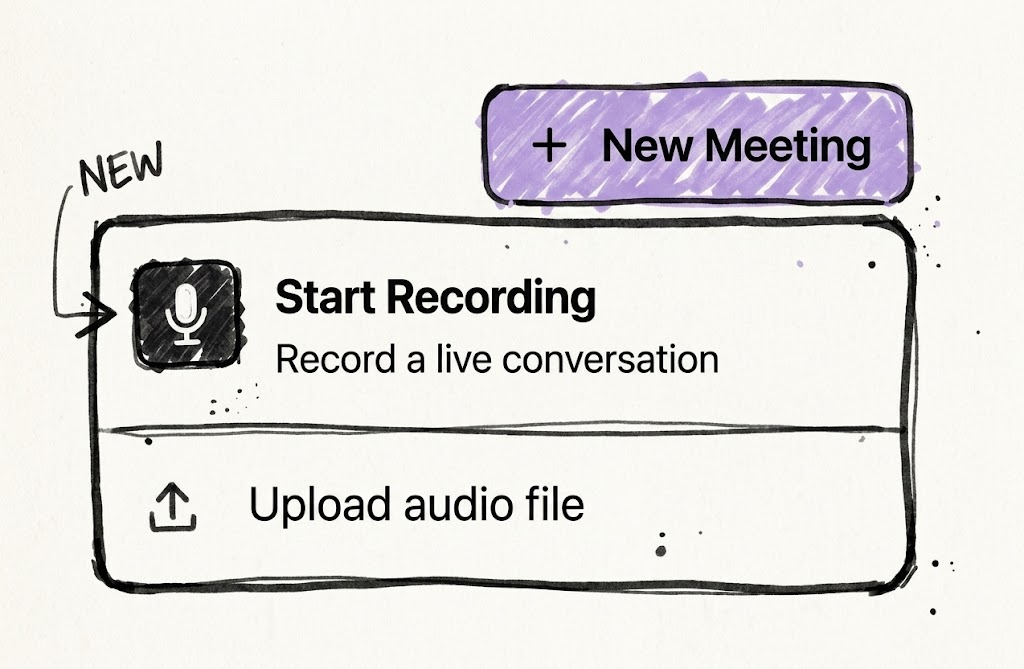
The existing "New Meeting" button becomes a dropdown with two options: Upload File (existing) and Start Live Recording (new). No new navigation patterns — we're extending what's already there.
Live Recording View
A focused, distraction-free workspace. The user's private notes take centre stage — the system's output sits alongside as an ambient feed, never competing for attention.
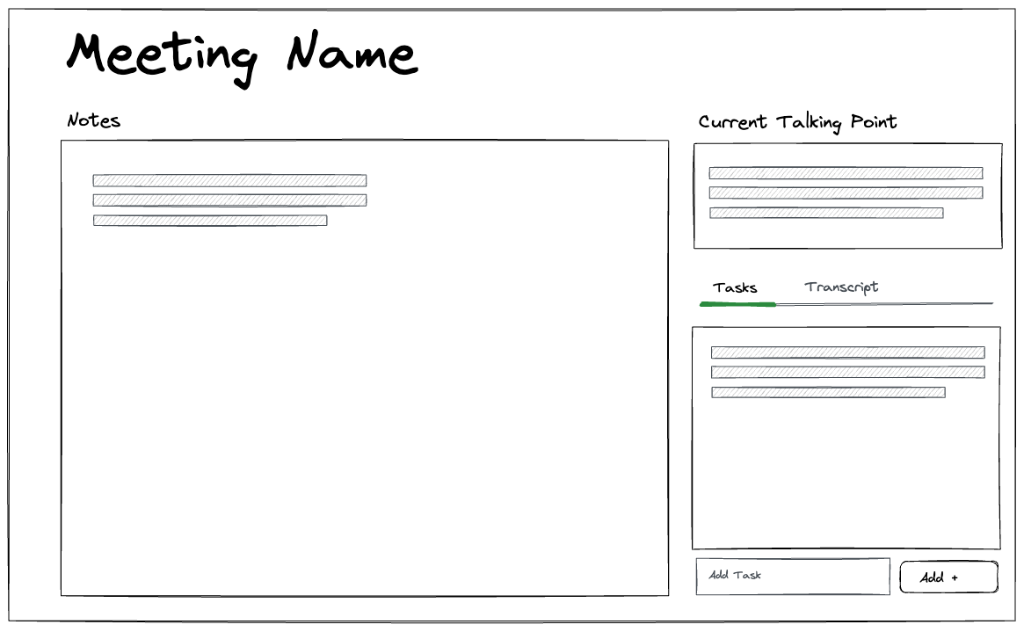
Layout:
- Recording Banner (top): Pulsing recording indicator, elapsed timer, Stop Recording button. If the ML connection drops, a degraded-mode warning appears inline here.
- Left Column (primary) — Private Notes: A single rich-text scratchpad per meeting. Auto-saves — no save button. The user writes freely during the session and can continue editing after.
- Right Column (secondary) — Context Panel: Live transcript stream (auto-scrolling), real-time talking points, and extracted tasks.
States:
| State | What the user sees |
|---|---|
| Mic Permission | Browser permission dialog. Behind it: the recording view skeleton — two-column layout with grey placeholder blocks. |
| Connecting | Skeleton visible. Banner shows "Connecting…" with a spinner instead of the pulsing dot. |
| Awaiting First Segment | Banner transitions to ● Recording 00:00. Transcript area shows "Listening…" in muted text. Notes scratchpad is active and ready. |
| Active | Transcript streaming in the context panel. Talking points and tasks arriving. User writing notes. |
| Degraded | ML connection drops — transcript and sidebar freeze on the last-received content. An inline warning appears above: "Live insights paused — audio is still recording." Notes scratchpad and audio capture continue uninterrupted. Clears automatically on reconnect. |
| Connectivity Lost | The browser loses its connection to the server. Banner: "Connection lost — audio is being saved on this device. Nothing will be lost." Context panel freezes. Notes scratchpad remains active. A gap placeholder appears in the transcript at the point of the last received segment. |
| Reconnected | Connection restored. Banner: "Reconnected. Live transcript continues from here. The full transcript (including the gap) will regenerate when the meeting ends." Gap placeholder remains visible in the transcript until post-meeting processing completes. Live insights resume. |
| Duration Warning | At T-10 minutes before the 4-hour limit, a non-blocking banner: "Recording will automatically stop in 10 minutes." |
Key Interactions:
- Auto-scroll: Transcript auto-scrolls to newest segment. Stops if the user scrolls up manually. A "Jump to latest →" button appears.
- Speaker labelling: Each transcript segment shows a speaker label. User can click it to reassign to a known person or add a new one. Reassignments update all segments from that speaker.
- Interim vs. final segments: Interim segments display muted/italic and are replaced in-place (no layout shift) when their final version arrives.
- Tasks: Each task has a description (required), assignee (optional), and due date (optional). Tasks can be nested. Tasks are labelled as either
systemorusergenerated. If the user edits a system-generated task, it becomes a user task. Tasks have a completion state (checkbox). Uses the standard task component.
Meeting Summary — Overview
Post-stop, the UI transitions to the Meeting Summary page. Two tabs at the top: Overview (active) and Transcript.
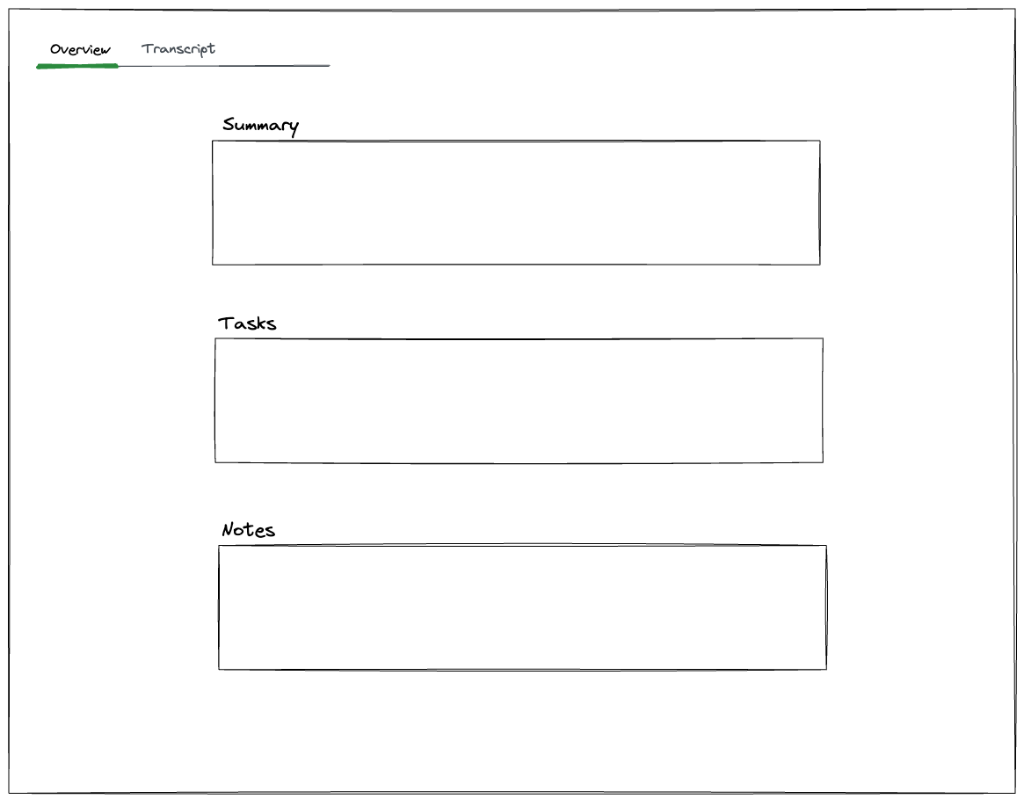
Layout (single column, stacked):
- Summary: Auto-generated headline, summary, and topics.
- Tasks: All tasks — both user-created and system-extracted.
- Notes: The user's private notes from the live session, still editable.
States:
| State | What the user sees |
|---|---|
| Re-processing | Summary, tasks, and notes visible immediately. A subtle progress indicator shows the background job is upgrading accuracy. Content updates in real time as each artefact completes. |
| Complete | All artefacts finalised. No progress indicator. |
Key Interactions:
- Edit notes: Notes remain fully editable after the session — same scratchpad, no mode change.
- Task CRUD: User can add, edit, and delete tasks. Editing a system-generated task promotes it to a user task. Tasks can be marked complete, nested under other tasks, and assigned to people with optional due dates.
Meeting Summary — Transcript
The Transcript tab with an audio player pinned to the top.
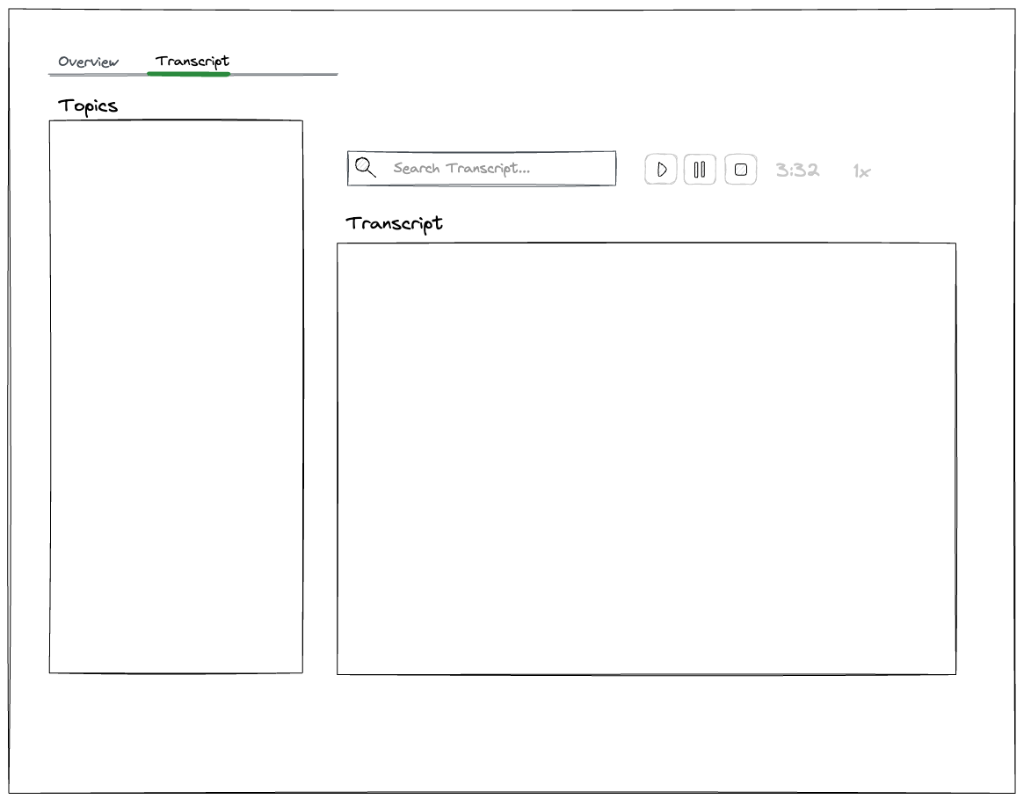
Layout:
- Audio Player (fixed header): Play/pause, ±15s skip, scrub bar, current/total time, playback speed (0.5×, 1×, 1.5×, 2×). Audio streams — playback begins before the full file downloads.
- Transcript: Segments highlighted in sync with audio playback. Clicking a segment seeks to that moment.
States:
| State | What the user sees |
|---|---|
| Audio Processing | Player disabled (greyed out): "Audio is still being processed." Enables automatically when ready. |
| Ready | Full player controls active. Transcript clickable and synced. |
| Audio Unavailable | Player error state: "Audio unavailable." Auto-retries with a fresh URL. |
Key Interactions:
- Sync'd highlighting: The transcript segment matching current playback time is visually highlighted. Auto-scrolls to keep it visible.
- Click-to-seek: Clicking any transcript segment seeks the audio to that segment's start time.
- Speaker labelling: Each segment shows a speaker label. User can click to reassign or add a new person. Reassignments update all segments from that speaker.
2. User Journeys
Live Recording
[New Meeting ▾] → Start Live Recording
       │
       ▼
  Mic Permission Prompt ──denied──→ Blocking modal (links to browser settings)
       │ granted
       ▼
  Connecting → Live Recording View
       │
       │  ← user speaks, system streams transcript, talking points, tasks
       │  ← user writes notes, adds tasks, and labels transcript segments
       │
       ▼
  [Stop Recording]
       │
       ▼
  "Ending session…" → Meeting Summary (Overview tab)
       │
       └──→ Background re-processing upgrades all artefacts (except tasks)
Post-Meeting Review
  Meeting Summary — Overview tab
       │
       │  ← review summary, edit notes, add/edit/delete tasks
       │
       ├──→ Transcript tab
       │      │
       │      │  ← play audio, follow along with sync'd transcript
       │      │  ← click segment to seek, label speakers
       │      │
       │      └──→ back to Overview tab
3. Edge Cases
| Scenario | Behaviour |
|---|---|
| Concurrent session | If a recording is already active, "Start Live Recording" is disabled with a tooltip. |
| ML connection drops | Transcript and sidebar freeze on last-received content. Inline warning appears. Notes and audio capture continue. Recovery is automatic. |
| Browser loses server connection | Audio saved to OPFS on the device — nothing is lost. Banner: "Connection lost — audio is being saved on this device." Gap placeholder appears in the transcript at the disconnect point. On reconnect, audio uploads automatically in the background. |
| GCS temporarily unavailable | Audio continues flowing; a gap accumulates in cloud storage. Client shows connectivity degraded banner. OPFS buffer captures the gap. Clears automatically when GCS recovers; gap backfilled from OPFS. |
| Browser tab backgrounded | Recording continues. Page title changes to "● Recording…" so the user can find the tab. |
| Long session (60+ min) | Transcript must virtualize — thousands of segments without virtual scrolling will freeze the browser. |
| Auto-stop at 4 hours | System stops recording and runs the standard post-meeting pipeline automatically. |
| No audio detected (10s) | Inline notice: "We're not detecting audio. Check your microphone." Clears on first segment. |
| Same user, multiple tabs | Only one tab may control a recording. If a recording is active in another tab, the second tab shows "Recording active in another tab" with a link to switch. No takeover — the original tab owns the session. |